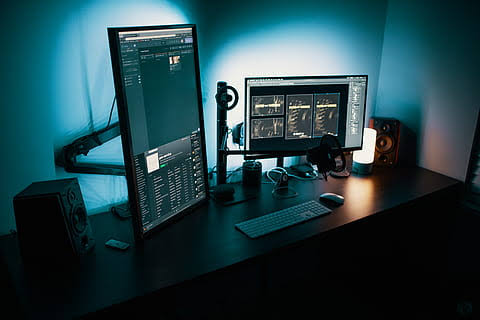
A beautiful wallpaper can completely change the look of a desktop, but many users are disappointed when their favorite image appears blurry, stretched, or pixelated on a 4K monitor. In most cases, the problem is not the display itself. The wallpaper may be too small, compressed, or incorrectly fitted to the screen, so you need to use a desktop wallpaper 4K.
To make a wallpaper look sharp on a 4K display, you need the right image resolution, proper display settings, a matching aspect ratio, and sometimes an enhancement tool to improve image quality. A few simple adjustments can make a noticeable difference.
Why Does A Wallpaper Look Blurry On A 4K Monitor?
Modern 4K monitors display a tremendous amount of detail. That is great for image quality, but it also makes flaws easier to spot. Common reasons for a blurry desktop wallpaper include:
- The image resolution is lower than the monitor resolution
- The wallpaper is stretched to fill the screen
- The file was compressed during download
- The aspect ratio does not match the display
- Windows or macOS is not using the native display resolution
- The image was originally designed for a smaller screen
A true 4K desktop wallpaper is typically 3840 x 2160 pixels. This resolution provides enough detail to fill most modern 4K displays without noticeable softness.
Choose The Right Wallpaper Resolution And Aspect Ratio
Many people focus only on file size, but resolution and aspect ratio are far more important. For most 4K monitors:
- Use wallpapers that are at least 3840 x 2160 pixels.
- Choose images with the same aspect ratio as your display.
- Download the highest available resolution when multiple sizes are offered.
Other display types require different dimensions:
- Ultrawide monitors often use 3440 x 1440 or 5120 x 2160.
- Dual-monitor setups may need specially designed panoramic wallpapers.
- Portrait-oriented displays require vertically cropped images.
Before downloading any wallpaper, check the listed resolution. Selecting an image that closely matches your monitor’s native resolution usually produces the sharpest results.
Fix Your Display And Wallpaper Settings First
Before searching for a new image, make sure your system settings are configured correctly.
On Windows
- Open Settings.
- Select System > Display.
- Set the display resolution to the recommended value.
- Open wallpaper settings.
- Choose Fill or Fit when appropriate.
- Avoid Stretch if the image uses a different aspect ratio.
On Mac
- Open System Settings.
- Go to Displays.
- Select the recommended display resolution.
- Choose a wallpaper that matches the display dimensions.
- Avoid using heavily compressed or low-resolution images.
These simple adjustments resolve many wallpaper-quality issues without requiring image editing.
Improve A Blurry Wallpaper Before Setting It as a Background
Sometimes the wallpaper itself is the problem. If an image is low-resolution, noisy, or slightly blurred, changing display settings will only help so much. In those situations, enhancing the image before using it as a background can improve the result.
For users who already have an image they like, 4DDiG AI Photo Enhancer may be useful. It is a desktop tool designed to help improve image clarity, reduce noise, sharpen details, and upscale wallpaper to 4K when the original resolution is too low.
This can be particularly helpful for:
- Upscaling 1080p wallpapers for 4K displays
- Making anime or digital artwork appear sharper
- Improving old photographs used as wallpapers
- Reducing grain in dark backgrounds
- Enhancing personal photos before using them as desktop backgrounds
While enhancement tools cannot perfectly restore every image, they can often make soft wallpapers look noticeably better on larger screens.
If you want a more detailed guide to finding, setting, and improving desktop wallpaper 4K, this resource covers practical options for PC and Mac users.
Where To Find High-Quality 4K Wallpapers
Finding the right wallpaper is often easier than fixing a poor-quality one.
Good sources include:
- Photography websites featuring landscapes and cityscapes
- Digital art communities
- Design portfolios
- Anime wallpaper collections
- Official game and movie websites
- Wallpaper platforms with resolution filters
When browsing for a 4K wallpaper for PC, pay close attention to the actual resolution listed on the download page.
It is also wise to avoid suspicious wallpaper websites filled with aggressive advertisements, fake download buttons, or software installers.
Quick Checklist Before Using A Wallpaper
Before setting a new wallpaper, run through this quick checklist:
- Is the image at least 3840 x 2160 pixels?
- Does the aspect ratio match your monitor?
- Does the image look sharp when viewed at full size?
- Is your display using the recommended resolution?
- Are wallpaper fit settings configured correctly?
- Does the image need sharpening or upscaling?
- Did you download the file from a trusted source?
A few seconds spent checking these details can prevent disappointment later.
Common Mistakes To Avoid
Many wallpaper quality issues come from simple mistakes.
Avoid these common problems:
- Using phone wallpapers on a desktop monitor
- Stretching small images across a 4K screen
- Downloading preview images instead of full-resolution versions
- Ignoring aspect ratio compatibility
- Assuming every image labeled “4K” is truly 3840 x 2160
- Choosing wallpapers that make icons difficult to read
Even a high-resolution wallpaper can look poor if it is used incorrectly.
Conclusion
A sharp wallpaper depends on more than just choosing an attractive image. Resolution, aspect ratio, display settings, and source quality all play important roles in how a wallpaper appears on a 4K monitor.
If a wallpaper still looks soft after adjusting your settings, the image itself may need improvement. Upscaling, sharpening, and noise reduction can often help reveal more detail before the image is applied as a background.
For users who already have a favorite picture but want to improve wallpaper quality, a tool such as 4DDiG AI Photo Enhancer may be a useful option for making images look clearer and more suitable for modern 4K displays.