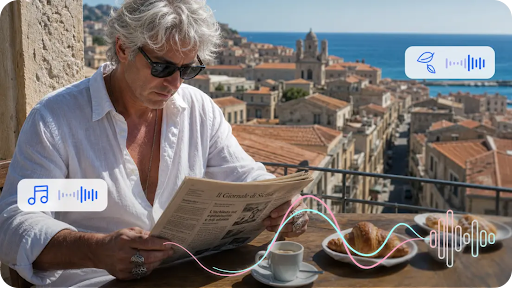
A piece of music already has a shape, it builds, drops, lingers, and resolves, even before a single image gets attached to it. Text to video tools can now follow that shape and turn it into something visual, and Dreamina’s Seedance 2.5 is good enough at reading rhythm and mood that a music concept can become a sequence that actually feels synced to the sound in your head.
Why music already reads like a visual sequence
Musicians describe sound in visual terms constantly, a rising synth line, a heavy bassline, a bright, airy chorus. That vocabulary translates almost directly into a prompt. Describing a swelling string section as “light building slowly from a single point until it fills the frame” isn’t a stretch, it’s just naming what the music already suggests.
Picking the moment in a track worth visualizing
A full song rarely needs one continuous visual, so pick the section that carries the most weight. A few moments tend to work particularly well:
- The build right before a drop or a key change
- A quiet bridge where the mood shifts entirely
- The opening few seconds that set the tone for everything after
One well-chosen moment says more about a track than trying to visualize the whole thing at once. Trying to cover an entire song usually spreads the visual too thin, and the sequence ends up feeling disconnected from any single part of the music.
What makes a music-inspired prompt actually work
A prompt that only names instruments produces something generic. A prompt that translates rhythm and texture into motion and light does far more. Fast, layered percussion might call for quick, overlapping visual elements, while a single sustained note might call for something slow and unbroken. Naming the tempo and texture in visual terms is what makes the sequence feel connected to the sound.
Your three-step path from concept to finished sequence
Step 1: Enter your prompt and add a reference if you have one
Open Dreamina and head to the AI Video section. If you have a mood board or reference image close to the track’s feel, upload it through “Add reference image.” Working straight from text to video, skip that and describe the sequence in detail instead.
Here’s an idea for a clip: Slow-moving ribbons of light pulsing in time with an imagined bassline, deep blue and violet tones shifting to warm gold as the intensity builds, particles scattering outward in bursts that sync with sharp percussive hits, the whole scene set against a soft black void.
Step 2: Choose Seedance 2.5 and generate
Select Seedance 2.5 once your prompt is ready, since it handles rhythmic, layered motion well. Pick a length that matches the section you’re visualising, then an aspect ratio: 9:16 for social platforms, 16:9 for anything meant to run alongside a music video. Generate and give it a few seconds to render.
Step 3: Refine the motion and export
Once the clip comes back, check that the movement actually feels tied to the rhythm you had in mind. Upscale sharpens fine detail in fast-moving elements, and Generate soundtrack can pair the visual with an ambient layer if you don’t already have the track attached. Export it once it feels synced and share it wherever the music is headed.
Meet Seedance 2.5, the model that handles complex character direction
The most significant improvement in Seedance 2.5 is the ability to follow creative direction, especially when scenes have more than one part that moves.
Green screen and blockout references
Direct input from live-action footage and white models (blockout) data from computer graphics software such as Maya allows for the exact touch points, angles, and interaction between characters to be specified, something difficult to do just through text descriptions.
Fixing the multi-person problem
The twin problem, in which a single person would create two copies of himself, as well as face-swap problems, which were occurring in scenes with more than one person, has been fixed.
Local edits instead of full re-renders
After the shot is created, certain elements like backpacks, sunglasses, and watches can be eliminated or modified on the regional level without re-rendering the whole shot.
Choosing colour and motion that match a track’s mood
Color carries as much emotional weight in a music visual as it does in the sound itself. Cooler tones tend to suit something moody or introspective, while warmer, brighter colors suit something energetic or triumphant. Deciding the palette before writing the prompt keeps the whole sequence feeling like one coherent idea instead of a random assortment of effects.
Where these music-inspired sequences are already being used
These visuals have moved well beyond music videos themselves. Independent artists use them as cover art in motion for streaming platforms, producers use them to pitch a track’s mood to collaborators before a video shoot, and DJs use looping visuals like these as backdrops during live sets. A track that used to exist only as sound can now come with a visual identity attached, and thanks to Seedance 2.5, that visual actually feels like it belongs to the music instead of being layered on top of it.
Turning a music concept into something visual used to require a dedicated motion designer and a real budget. With Dreamina and the rhythm-aware precision of Seedance 2.5, that same idea can go from a description to a finished sequence before the track is even mixed. What used to take a full production team can now start with a musician simply describing what the sound feels like to them.