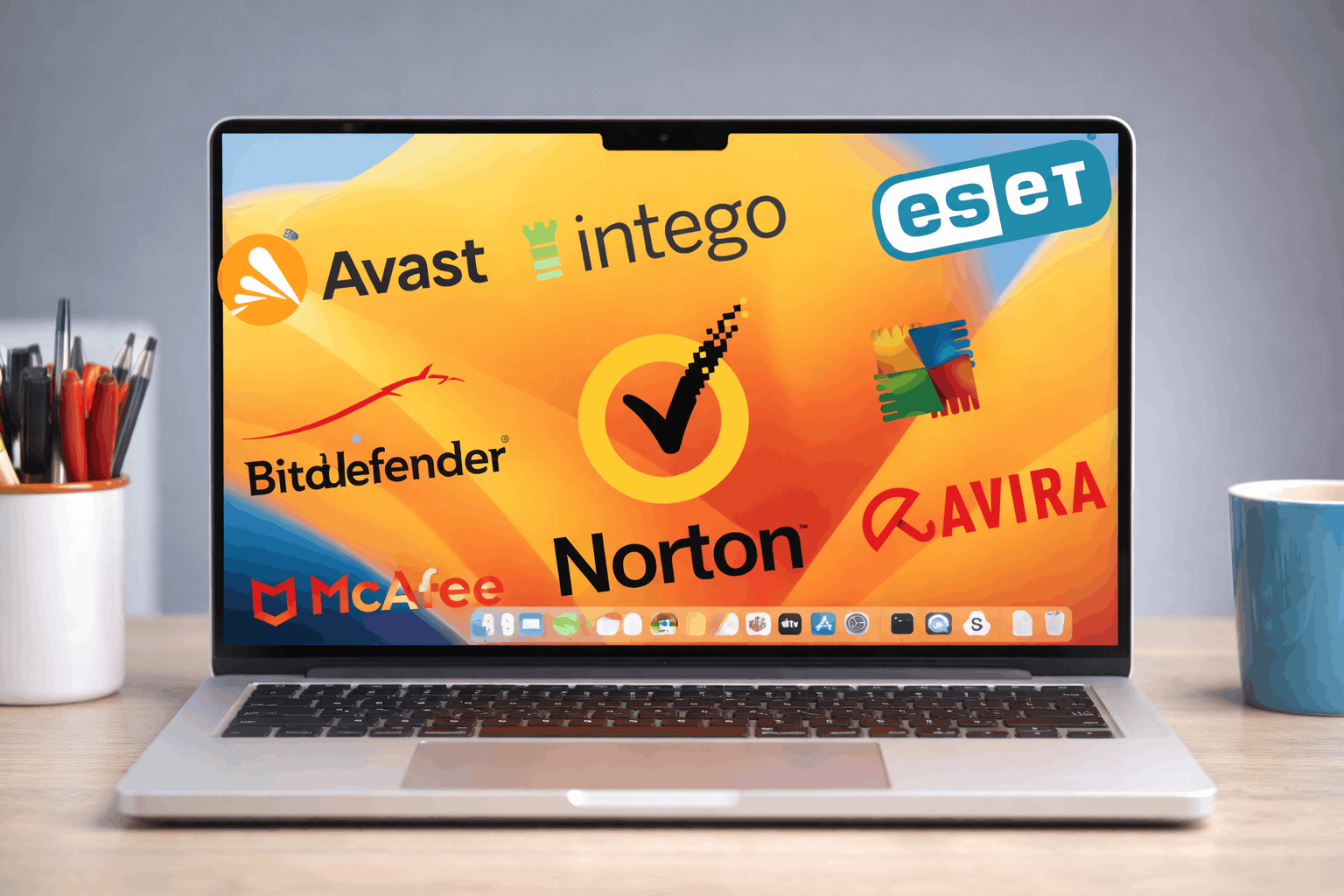
Apple has built a well-deserved reputation for security, but that reputation creates a dangerous complacency among Mac users. The threat landscape in 2026 looks nothing like it did five years ago. macOS is now a primary target for sophisticated attacks not because Apple’s defenses are weak, but because the Mac user base has grown large enough to make it commercially worthwhile for attackers to invest in macOS-specific malware, phishing campaigns, and social engineering tactics. Owning a Mac no longer means owning a safe computer by default. It means owning a computer with strong security foundations that still require deliberate effort to maintain.
Keep macOS and System Software Current Without Exception
This is the most unglamorous advice in security and also the most important. A significant percentage of successful Mac compromises in 2026 exploit vulnerabilities that Apple patched months earlier. The machines that get hit are the ones whose owners clicked “Remind Me Later” one too many times.
Apple releases Rapid Security Responses small, targeted patches that address critical vulnerabilities outside the normal update cycle. These should be applied immediately when they appear. For a complete walkthrough of how to handle both routine and urgent patches on Apple Silicon machines, the guide on OS security updates covers the process in detail. Enable automatic security updates in System Settings and check manually once a week regardless automation is reliable until the rare moment it isn’t.
Use a Password Manager and Stop Reusing Credentials
The average person manages over 100 accounts. No one can maintain unique, complex passwords across that many services without help. Reused passwords are the single most common root cause of account compromises, and once an attacker has one credential set, they systematically test it across banking, email, and cloud storage services.
1Password, Bitwarden, and Apple’s own Passwords app (significantly improved in macOS Sequoia) are all solid choices. The specific tool matters less than the habit. Every account gets a unique, randomly generated password stored in the manager. No exceptions for accounts you consider unimportant attackers frequently use low-value account access to pivot toward high-value targets.
- Enable biometric unlock on your password manager for convenience without compromising security
- Store two-factor authentication codes inside the manager for accounts that don’t support hardware keys
- Audit your saved passwords quarterly and replace any flagged as compromised or reused
Enable FileVault and Understand What It Actually Protects
FileVault encrypts your entire startup disk, meaning that if your Mac is stolen or lost, the data on it is inaccessible without your login credentials. On Apple Silicon Macs, FileVault works alongside the Secure Enclave to provide encryption that is genuinely robust against physical access attacks.
What FileVault does not protect against is an attacker with remote access to a running, logged-in machine. Encryption at rest is one layer of protection not a complete solution. Enable it in System Settings under Privacy and Security, store your recovery key somewhere physically secure and separate from the machine, and understand that its value is specifically in theft and physical access scenarios.
Treat Gatekeeper and App Notarization as Non-Negotiable
macOS Gatekeeper verifies that applications are signed by identified developers and notarized by Apple before they run. The bypass instructions that circulate online right-click, Open, ignore the warning exist for legitimate edge cases and get misused constantly.
If you’re regularly disabling Gatekeeper to run software, you’re regularly accepting unknown risk. In 2026, the volume of malicious software disguised as cracked productivity apps, pirated creative tools, and “free” utilities has reached levels that make this habit genuinely dangerous. The savings from avoiding a software license are rarely worth what a compromised machine costs in time, data, and stress.
When you genuinely need software that isn’t notarized, research it thoroughly before bypassing any warning not after.
Configure Your Firewall and Review Network Permissions
macOS includes a built-in application firewall that most users never touch. It’s found in System Settings under Network and controls which applications can accept incoming connections. For most users on home networks, enabling it with stealth mode active is a sensible baseline.
Beyond the built-in firewall, tools like Little Snitch provide outbound connection monitoring showing you which applications are calling home, where they’re connecting, and giving you the ability to block unexpected behavior. This category of tool is particularly useful for identifying software that’s transmitting more data than its function requires.
- Enable the macOS firewall and activate stealth mode under its options
- Audit Location Services and Full Disk Access in Privacy and Security settings every few months
- Remove permissions from applications that no longer need them or that you no longer actively use
Be Skeptical of Browser Extensions and Login Prompts
Browser extensions have become one of the primary attack surfaces on macOS. They run with significant access to your browsing session, can read page content, and in some cases intercept form submissions. In 2026, the ecosystem of malicious extensions many of them indistinguishable from legitimate tools at install time is substantial.
Keep your extension list minimal. Review installed extensions every few months and remove anything you don’t actively use or can’t verify as trustworthy. Apply the same skepticism to system-level permission prompts. macOS will ask for your password when software requests elevated access — that prompt is a security checkpoint, not an inconvenience. Read it before clicking through.
Use Two-Factor Authentication Across Every Account That Offers It
Two-factor authentication is the single most effective account protection measure available to regular users. Even if an attacker obtains your password through a data breach or phishing campaign, 2FA prevents them from accessing the account without the second factor.
Hardware security keys particularly YubiKey and Apple’s own passkey implementation represent the strongest form of 2FA available in 2026. They’re immune to phishing because they cryptographically verify the website’s identity before authenticating. For accounts that don’t support hardware keys, authenticator app codes are significantly more secure than SMS codes, which remain vulnerable to SIM-swapping attacks.
Prioritize 2FA on email above everything else. Email account access enables password resets across virtually every other service you use.
Frequently Asked Questions
Is a Mac really less vulnerable than a Windows PC in 2026?
The gap has narrowed considerably. macOS has strong built-in protections, but the platform now faces sophisticated, targeted attacks. The security outcome depends far more on user behavior and configuration than on the operating system itself.
Does Apple Silicon make Macs more secure than Intel models?
Yes, meaningfully so. The Secure Enclave, hardware-verified boot process, and memory protection features built into Apple Silicon provide security capabilities that Intel-based Macs couldn’t replicate at the hardware level. If you’re on an older Intel Mac, it’s one legitimate reason to consider upgrading.
Do I need third-party antivirus software on a Mac?
Apple’s built-in XProtect and Malware Removal Tool provide a genuine baseline of protection. Third-party options from reputable vendors can add value through real-time behavioral monitoring, but they’re not a replacement for the habits described in this article. Avoid free antivirus tools from unfamiliar vendors some introduce more risk than they remove.
What should I do immediately if I think my Mac has been compromised?
Disconnect from the internet first to prevent further data transmission. Change passwords for critical accounts from a separate, trusted device. Run a malware scan using a reputable tool. If you suspect a serious compromise, a clean macOS reinstall from Recovery Mode is more reliable than attempting to clean an infected system manually.